
Authentication
Every request carries an API key. You make keys in the dashboard, see each one once, and can cancel a key whenever you want.
Last updated July 3, 2026
Make a key
You create API keys from the web app — you can't ask for a key over the API.
- Open Settings in the dashboard, then the Developer tab.
- Under API keys, give the key a name (like
ZapierorMy script). - Optionally pick a project. Leave it on All projects to let the key read any of your projects.
- Click Create key.
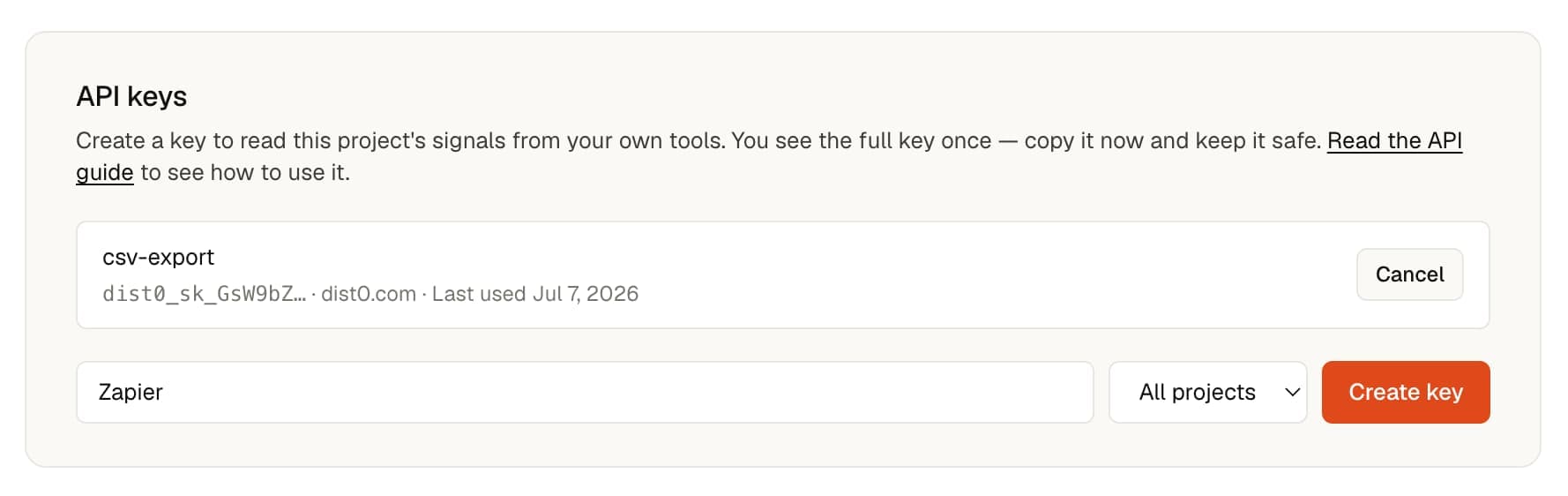
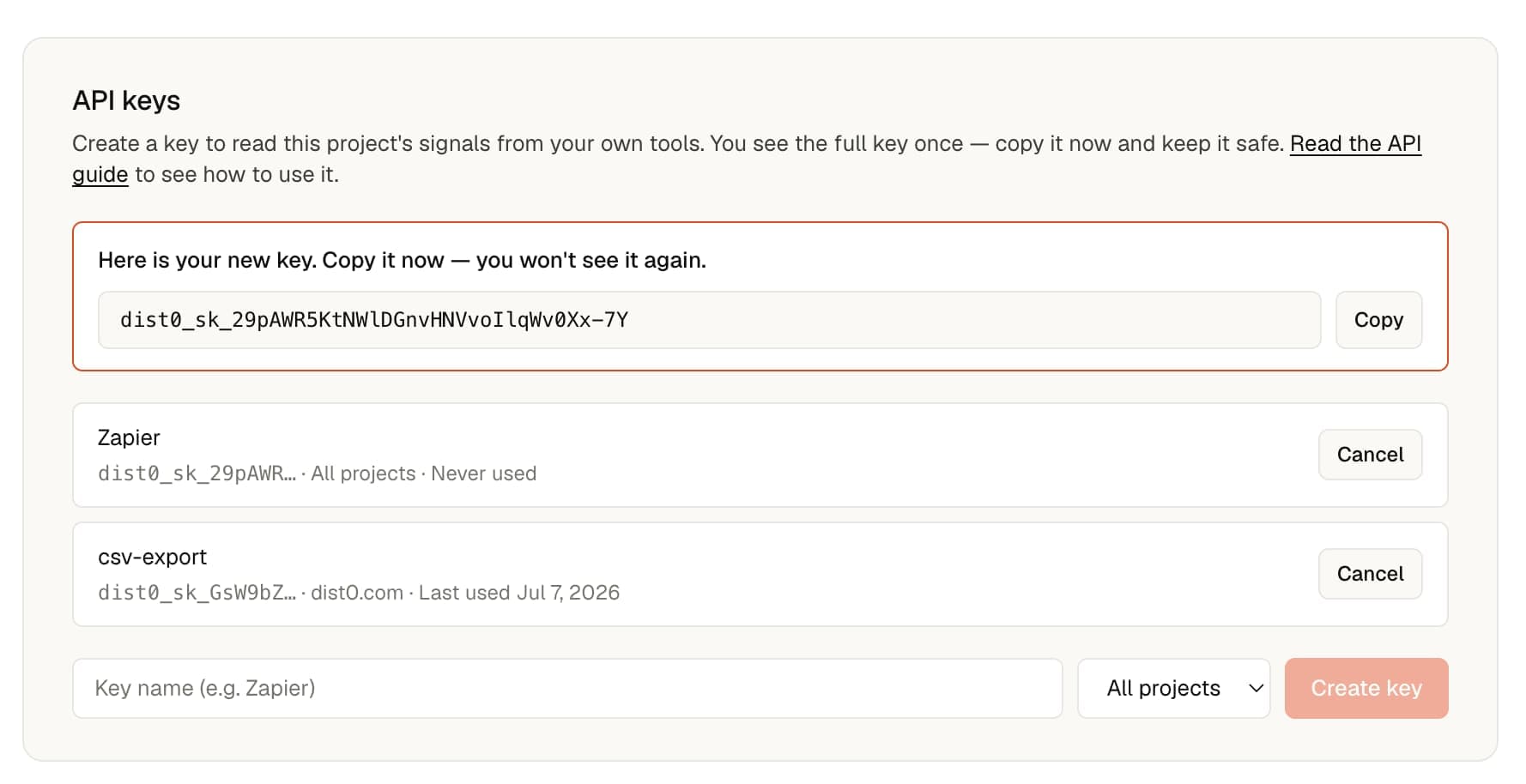
The new key appears once, with a Copy button. Copy it before you leave the page.
Use a key
Send the key as a bearer token in the Authorization header on every request:
Authorization: Bearer <your-key>curl -s https://dist0.com/api/v1/invoke \
-H "Authorization: Bearer $DIST0_KEY" \
-H "Content-Type: application/json" \
-d '{ "capability": "pains.list", "input": { "type": "pain", "sort": "posts" } }'A request with a key the server doesn't recognize comes back as 403 forbidden.
A request with no key at all comes back as 401.
When you can't send a header
Some tools — like Google Sheets' IMPORTDATA — can't send an Authorization
header. The CSV export also takes the key as a ?token=
value in the URL for those cases. Because the key then sits visibly in the URL,
tie it to one project and cancel it if it leaks.
Which project a key reads
When you make a key, you can tie it to one project. A project-tied key always
reads that project, and the project selector on a request is ignored.
A key set to All projects reads any project on your account. Choose which
one per request with the project selector; without it, the API uses your most
recent project. See the HTTP reference for how the selector
works.
Cancel a key
In Settings → Developer → API keys, each key shows its name, a short prefix, the project
it's tied to, and when it was last used. Click Cancel to turn a key off.
A cancelled key stops working right away; anything using it will start getting
403 forbidden.